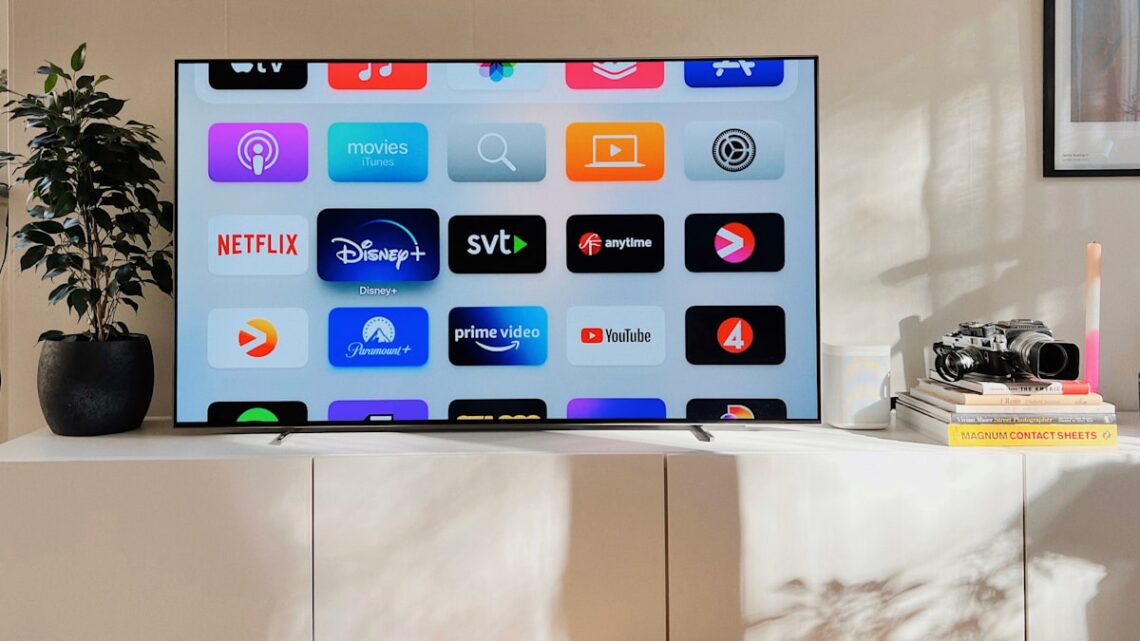
If you own an Amazon Fire TV Stick, setting up IPTV for Firestick is one of the easiest and cheapest ways to unlock thousands of channels on any television. You do not need a smart TV or a separate box — just the little stick you plug into an HDMI port. This 2026 guide shows you exactly how to install IPTV for Firestick in minutes, which app to use, and how to get the smoothest possible picture.
Why choose IPTV for Firestick?
The Fire TV Stick is affordable, portable and works on any TV with an HDMI port, which makes it the most popular device for streaming. Paired with a good IPTV subscription, it turns any television into a smart streaming machine with more than 120,000 live channels and a huge on-demand library. You can browse everything included on our channels page.
What you need before you start
First, choose a TechView IPTV plan. After you order, you will receive your login details — a username, password and server URL — by email and WhatsApp, usually within a few minutes. Keep them handy, because you will enter them into the app.
How to install IPTV for Firestick step by step
- From the home screen go to Settings → My Fire TV → Developer Options and turn on “Apps from Unknown Sources”.
- Return to the home screen, search for the “Downloader” app and install it.
- Open Downloader and use it to install “IPTV Smarters”.
- Launch IPTV Smarters and choose “Login with Xtream Codes API”.
- Enter your username, password and server URL, then tap Add User.
- Wait a moment for the channels and VOD to load, and start watching.
Best app for IPTV on Firestick
IPTV Smarters is the most popular app for IPTV for Firestick because it is fast, stable and very easy to set up, with a clean layout and built-in EPG (TV guide). TiviMate is another excellent option for advanced users who want more customisation, while IBO Player is a lightweight alternative. Any of them works well with TechView IPTV.
Tips for the best IPTV for Firestick experience
For smooth playback, use a stable internet connection of 20 Mbps or more for 4K, and connect your router as close to the Firestick as possible. A Fire TV Stick 4K or 4K Max gives noticeably better performance than the basic model. If a channel ever stutters, simply close and reopen the app — it usually clears instantly.
Fixing common Firestick issues
If channels will not load, double-check that you typed your login details exactly, including the http and port. If the picture buffers, lower the stream quality or switch from Wi-Fi to a wired connection using an Ethernet adapter. If you are still stuck, our 24/7 support team can help.
Frequently asked questions
Is IPTV for Firestick easy to set up? Yes — it takes under five minutes with IPTV Smarters.
Do I need a new Firestick? No, any Fire TV Stick works, though the 4K models perform best.
What if it does not work? Check your details and connection, then contact our 24/7 support.
Is a 24h test (€1.90) available? Yes, message us on WhatsApp.
Need instructions for other devices? See our full setup guide, read real customer reviews, or view plans and get started →
IPTV for Firestick: EPG and catch-up
One of the best things about IPTV for Firestick with IPTV Smarters is the built-in electronic programme guide (EPG). It shows you what is on now and next across every channel, just like a traditional TV guide, and many channels also offer catch-up so you can watch shows you missed. This turns a cheap Fire TV Stick into a full smart-TV experience.
Is IPTV for Firestick safe to set up?
Installing an IPTV app on your Firestick is straightforward and safe; you are simply adding a media player, the same way you would add any other app. As always, you are responsible for the content you choose to watch in your country. TechView IPTV keeps your IPTV for Firestick setup simple and offers 24/7 support if you ever need a hand.